Business Onboarding & Setup
Export iOS Contacts to CSV
Use this guide to export your iOS contacts as a vCard (VCF) from your phone, then convert them to CSV using Google Contacts for use in CRMs, booking tools, and other systems.
☰
Why Export Your Contacts?
Many businesses rely on third-party platforms to manage bookings, email lists, and customer communication. Exporting your iOS contacts as a vCard (VCF) and converting that file to CSV via Google Contacts lets you move your existing people into these systems without manual re-typing. A clean CSV also reduces errors, speeds up onboarding, and keeps your customer data consistent across tools.
↓Step-by-Step Guide
- 1
Open Your Contacts
On your iOS device, open the Contacts app and navigate to your main list. Ensure you're viewing your full contact set, not a filtered group.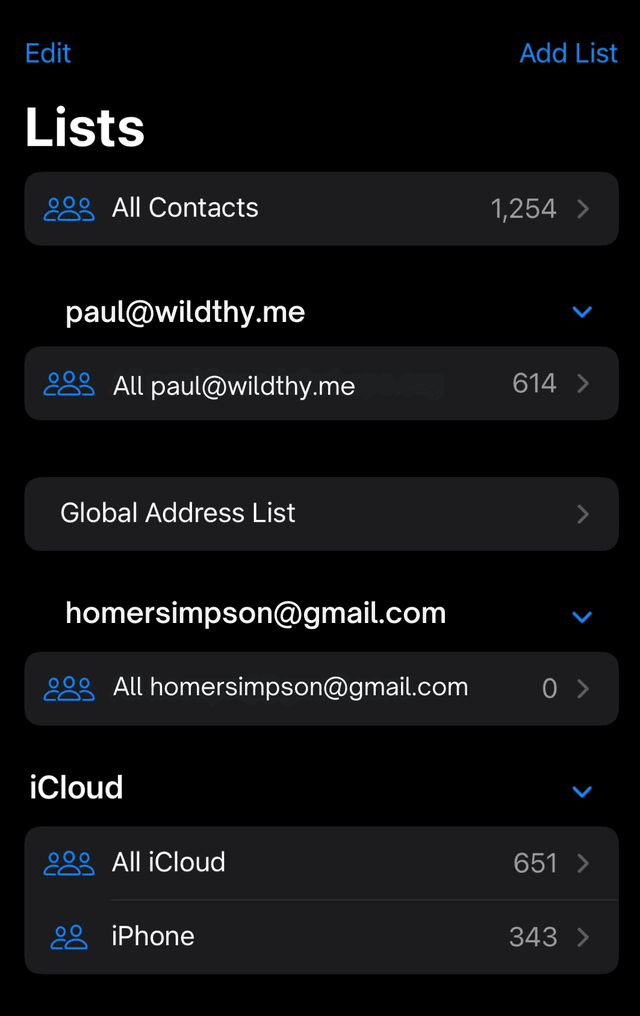
- 2
Access the Export Option
Long press the "Contacts" title at the top of the screen. After a moment, an "Export" option will appear. This will generate a vCard (.vcf) file containing your contacts.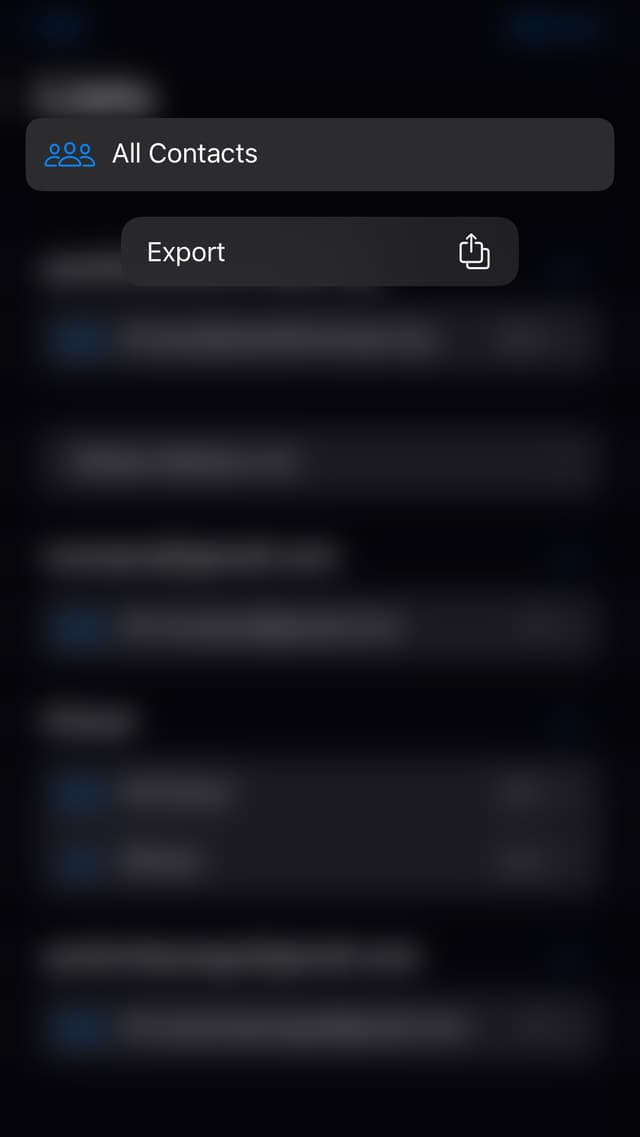
- 3
Select Fields to Export
Choose the fields you want to include. For full compatibility with CRMs and booking systems, select "Select All Fields" to capture names, phone numbers, emails, notes, and addresses in the vCard file.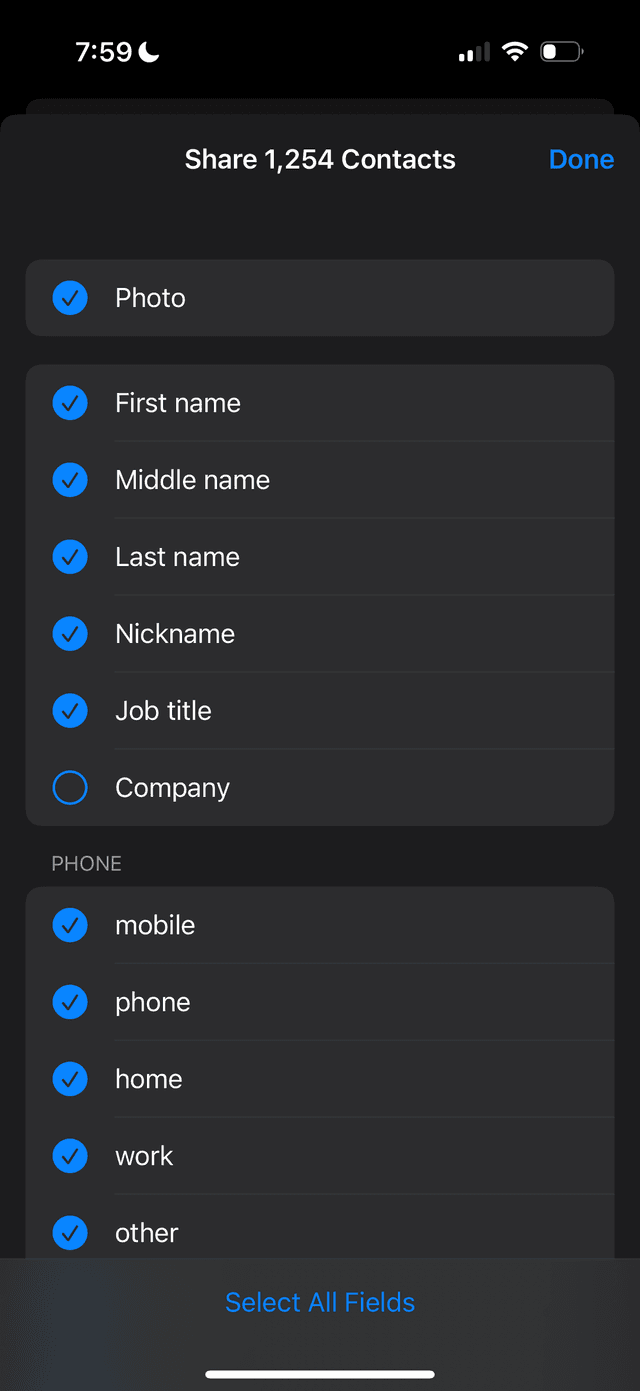
- 4
Choose Your Sharing Method
Select how you want to receive the exported vCard file. You can email it to yourself, save it to Files, or use AirDrop to send it to your computer. The exported file will be a standard vCard (.vcf) that you'll convert to CSV using Google Contacts in the next steps.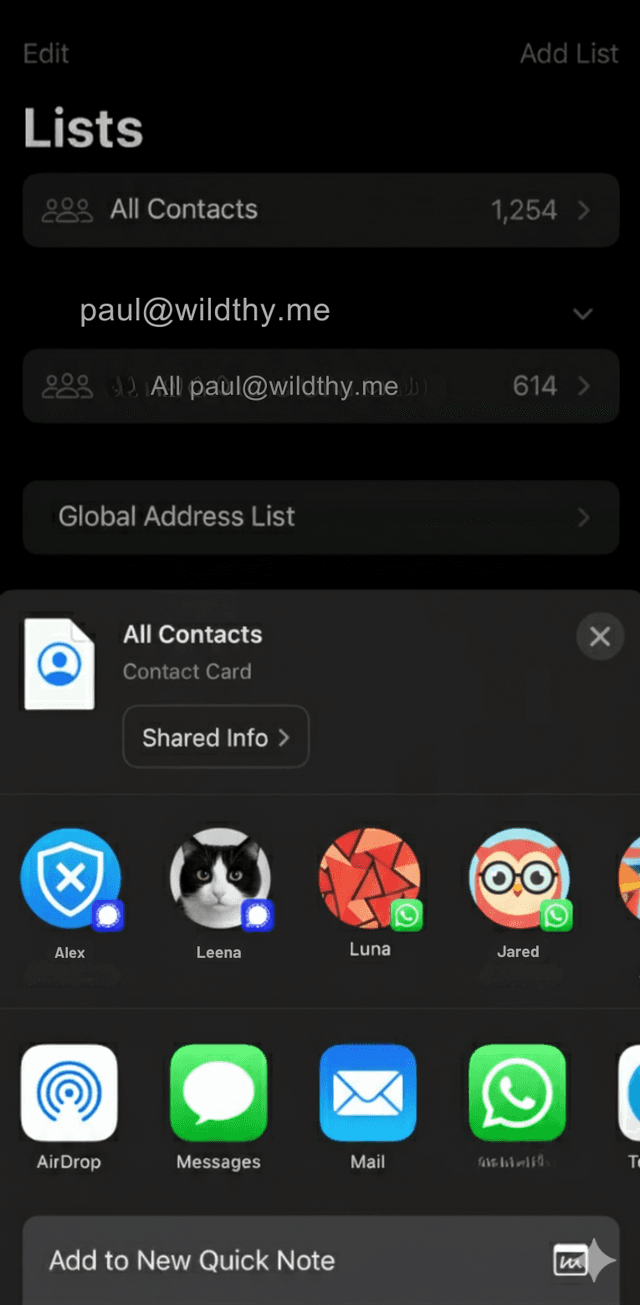
- 5
Upload to Google Contacts
Transfer the .vcf file to your computer. Open contacts.google.com in your browser and click the Import button. Select your vCard file and confirm the upload.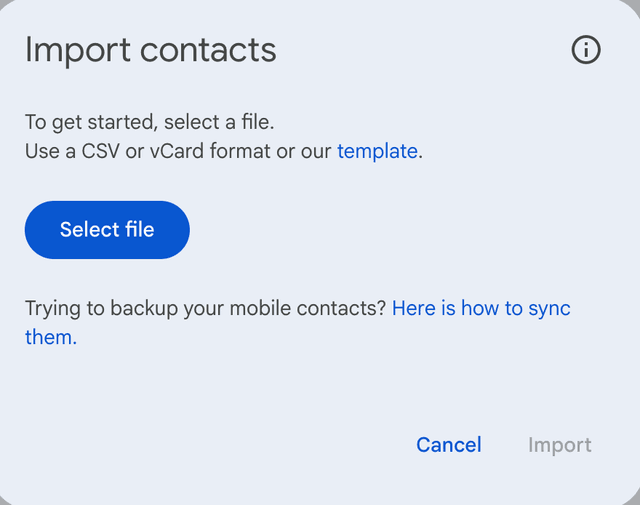
- 6
Review Imported Contacts
After the vCard import completes, review your contacts in Google Contacts to make sure they look correct. At the top of the contacts table, locate and click the Export button to generate a CSV file.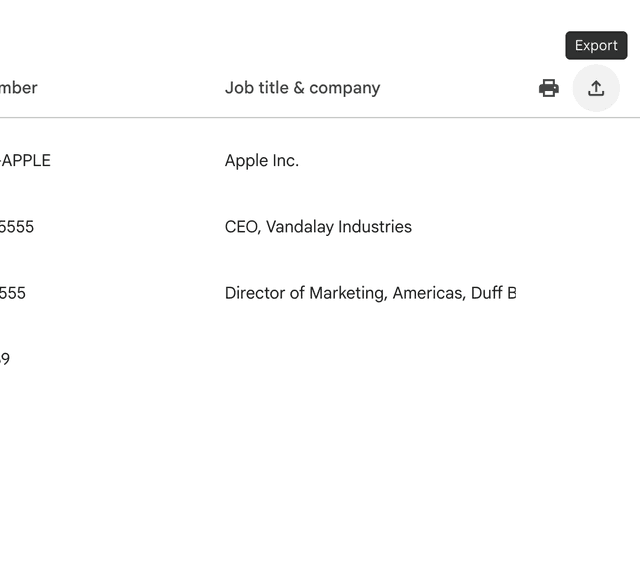
- 7
Export as CSV
In the export dialog, select Google CSV as the format and click Export. A CSV file will download to your computer. Open it to verify field formatting and completeness before importing into your CRM, booking system, or other business tools.
Tips & Best Practices
- •Export all fields if you're migrating into a new system. This preserves the most complete customer record and avoids partial imports during the vCard-to-CSV conversion.
- •Use a reliable transfer method: Email works well for cross-device access, while AirDrop is fastest for Mac users and keeps the vCard file local to your devices.
- •Deduplicate before importing: Clean up obvious duplicates in iOS or Google Contacts before your final CSV export. This prevents automation issues and duplicate records in your CRM.
- •Store exports securely: Both vCard and CSV files contain sensitive contact data. Keep backups in a secure, access-controlled location and avoid sharing them over insecure channels.
Need Additional Help?
If you need assistance with contact management, CRM setup, or integrating your business systems, we're here to support you.
Contact Us